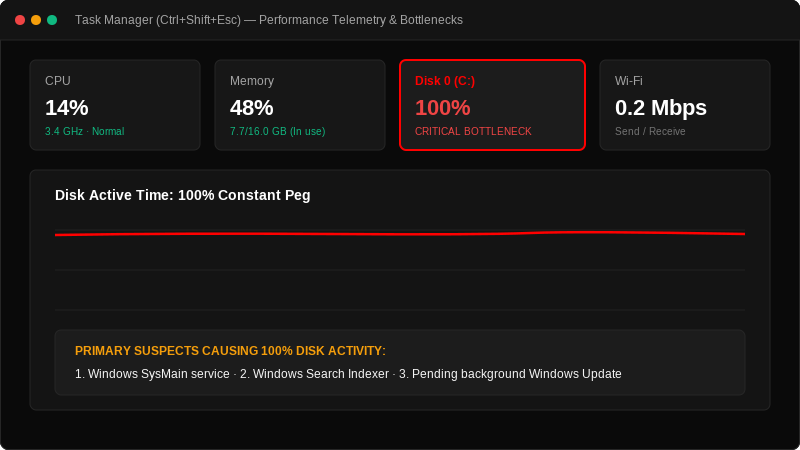
PerformanceWindows 11
Windows 11 Running Slow — How to Diagnose It
A slow PC is usually caused by one hardware resource hitting 100%. Task Manager reveals the culprit in seconds.

Software Developer & Technical Editor
Jadox is a software developer and technology enthusiast who enjoys figuring out why computers stop working the way they should. He creates practical content about Windows, PC hardware, drivers, networking, audio, updates, and other common computer problems.
Through RoxyTech, Jadox focuses on making technical problems easier to understand by explaining what can cause them, what to check, and how to get things working again. The content is based on testing solutions and breaking down technical problems into simple steps.
His goal is to make technology easier to understand and troubleshooting less frustrating for everyday computer users.
How guides are researched, diagnosed, and tested before being published on RoxyTech.
Jadox avoids repetitive advice like “restart your PC” without diagnosing root causes. Every guide targets why a device failed—whether an Exclusive Mode audio conflict, a Wi-Fi power-save sleep glitch, or an outdated display pipeline.
Tested across real hardware: Intel and AMD desktop rigs, laptops with Realtek ALC and USB DACs, Intel AX211 Wi-Fi 6E adapters, and multi-monitor DisplayPort / HDMI switchers running current Windows 11 builds.
PowerShell scripts, command-line arguments (like netsh wlan, mmsys.cpl), and Windows registry paths are manually verified prior to inclusion in any guide.
A slow PC is usually caused by one hardware resource hitting 100%. Task Manager reveals the culprit in seconds.
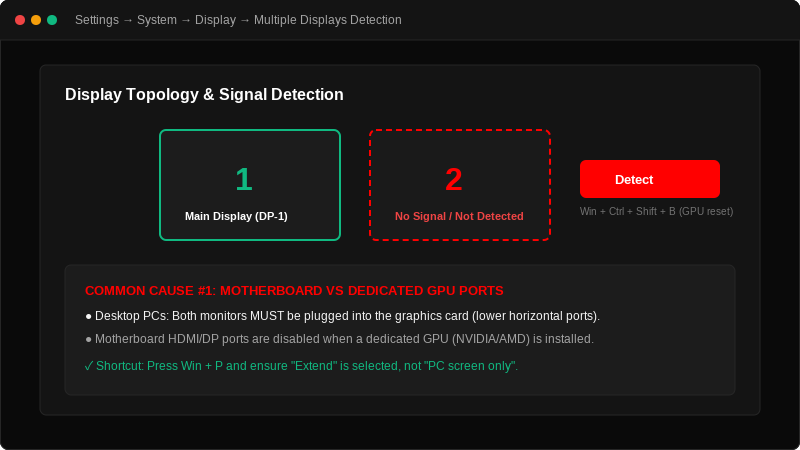
Windows not picking up your second monitor? Start with dedicated GPU port routing and display reset shortcuts before touching complex settings.
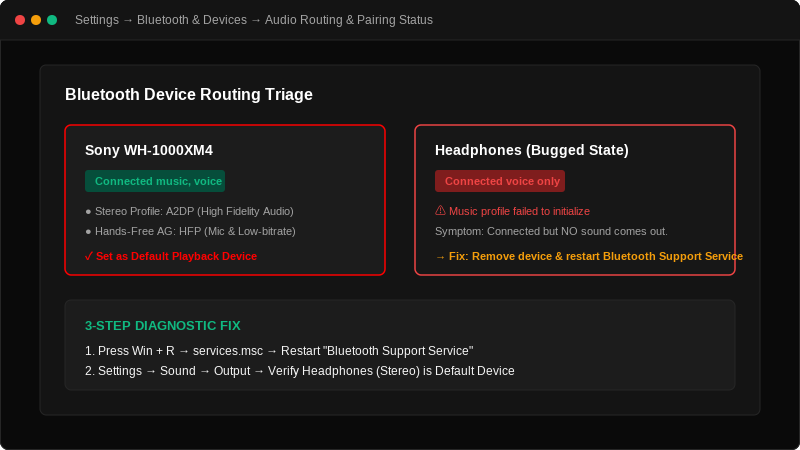
Bluetooth won't pair, or paired but no audio? Learn how to fix endpoint profile mismatches and restart the Bluetooth Support Service.
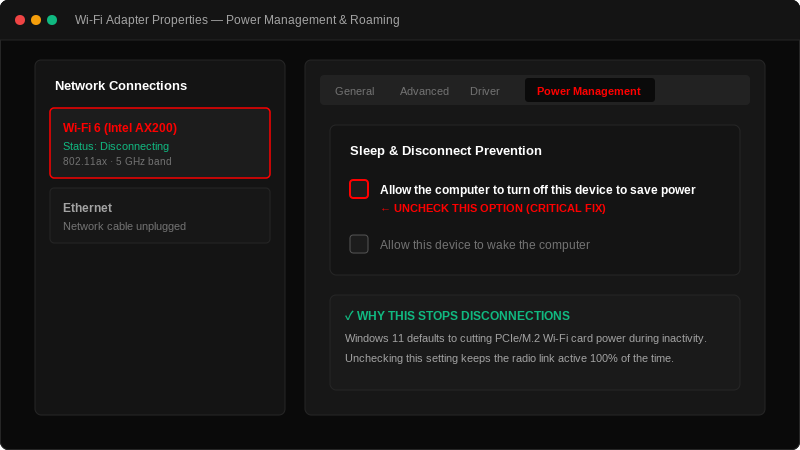
If your Wi-Fi keeps dropping every few minutes, adapter sleep states and roaming aggressiveness are usually the cause. Here's how to fix it permanently.
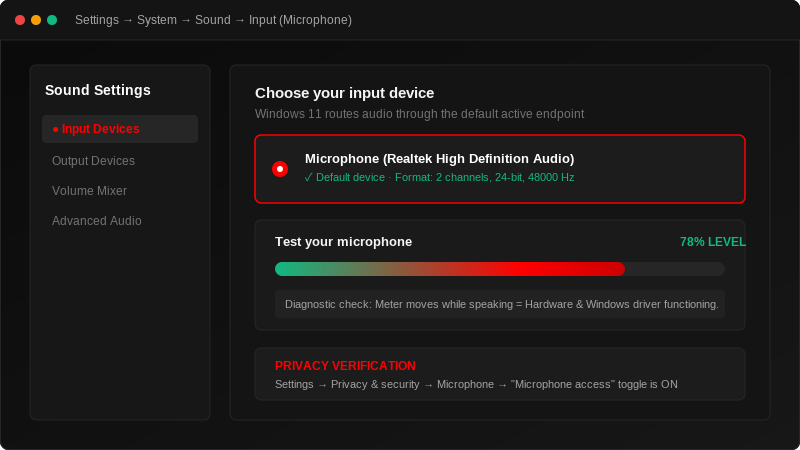
Windows isn't picking up your microphone? Start by checking whether Windows detects the device — that single check splits the diagnosis into two clear paths.