
Microphone Not Working on Windows 11
Windows isn't picking up your microphone? Start by checking whether Windows detects the device — that single check splits the diagnosis into two clear paths.
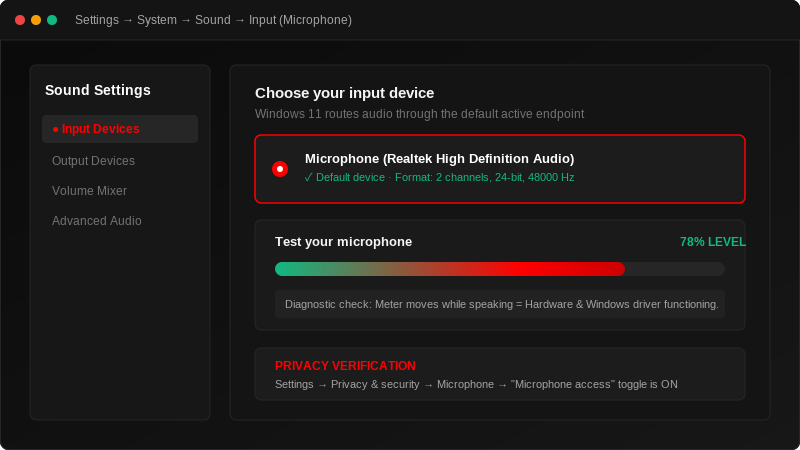
If Windows isn't picking up your microphone, start by checking whether Windows detects the device at all. That single check splits the problem into two distinct diagnostic paths. You can immediately verify your hardware input level using our live Microphone Test Tool.
Open Settings → System → Sound → Input. Does your microphone appear in the list?
Check physical connection and Device Manager
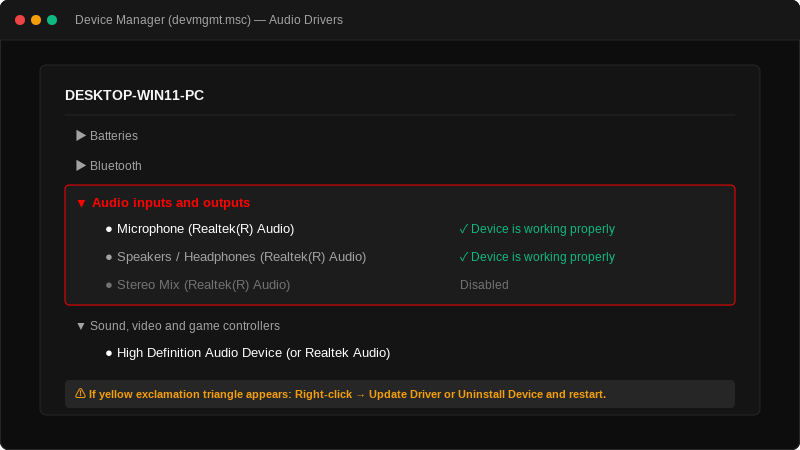
Unplug the microphone and plug it back in. Try a rear motherboard USB port if available, as front panel headers are prone to loose wiring. Open Device Manager (Win + X → Device Manager) and verify your device status under Audio inputs and outputs.
Check microphone privacy permissions
Go to Settings → Privacy & security → Microphone. Ensure 'Microphone access' is toggled ON, and verify that the specific application (Teams, Zoom, Discord, Chrome) is authorized in the app list below.
Set the correct default input device and test signal level
Go to Settings → System → Sound. Under Input, select your primary microphone. Speak into the microphone and check the real-time volume input bar.
# Verify active audio endpoint devices via PowerShell
Get-PnpDevice -Class AudioEndpoint | Where-Object {$_.FriendlyName -like '*Microphone*'} | Select-Object Status, FriendlyName, InstanceIdReinstall or rollback the audio device driver
In Device Manager, right-click your microphone device → Uninstall device. Restart your PC. Windows will automatically re-enumerate the hardware ID and reload the standard Microsoft UAC2 USB audio class driver.
Quick pre-troubleshooting checklist
- ✓Microphone physically plugged into rear motherboard port
- ✓Hardware mute switch on headset cable confirmed unmuted
- ✓Device visible in Device Manager without yellow error icon
- ✓Windows Privacy & security microphone permission enabled
- ✓Target app selected as active in Windows Volume Mixer
- ✓Tested live with Microphone Test Tool
Frequently asked audio questions
My microphone works in Windows Sound settings but not in Teams or Discord. Why?
The communication app has its own audio device setting overriding Windows defaults. Open the app's internal Audio settings and explicitly pick your microphone rather than 'Default Communication Device'.
What if my audio output is also failing at the same time?
A combined input/output failure points to a crashed Windows Audio service (Audiosrv) or a failed audio controller. Check our guide on No Sound on Windows 11 and test stereo balance with our Speaker & Stereo Test.
Diagnostic Network & Related Fixes

Jadox is a software developer and technology enthusiast who enjoys figuring out why computers stop working the way they should. He creates practical content about Windows, PC hardware, drivers, networking, audio, updates, and other common computer problems. Through RoxyTech, Jadox focuses on making technical problems easier to understand by explaining what can cause them, what to check, and how to get things working again. The content is based on testing solutions and breaking down technical problems into simple steps. His goal is to make technology easier to understand and troubleshooting less frustrating for everyday computer users.